Language Arts Homeschool Curriculum
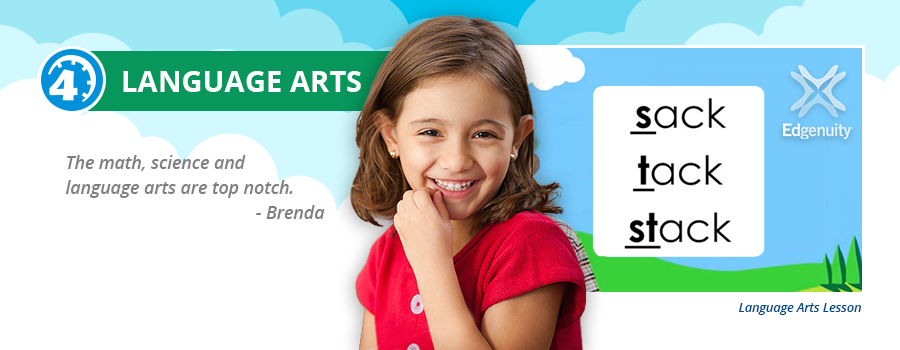
Time4Learning’s Language Arts program is a staple in our curriculum options. The interactive activities and lessons are designed to strengthen and expand your student’s knowledge and understanding of the workings of the English language.
What Does Time4Learning’s Language Arts Curriculum Include?
The Time4Learning Language Arts curriculum is designed to give students in grades PreK-12th a comprehensive, standards-based education that includes phonics, reading, grammar, and writing.
Reading
Whether your child is just beginning to read, is already a proficient reader, or has reading skills anywhere in between, Time4Learning walks students through the steps of literacy from developing phonemic awareness, building phonics skills, increasing reading fluency, and expanding vocabulary, to forming and honing reading comprehension skills and strategies. By constructing upon these foundational skills and meeting the students where they are, Time4Learning inspires children toward a lifelong love of reading.
Spelling
From preschool to second grade, Time4Learning teaches spelling as a component of the language arts and phonics program. From third grade through high school, spelling is integrated into vocabulary development exercises within language arts and other subjects. There are also spelling lists available for Kindergarten through 8th grade.
Grammar
Grammar makes up the majority of Time4Learning’s language arts curriculum. While there are many grammatical elements that must be learned, our program integrates grammar rules with mechanics and teaches students how to use components of writing like punctuation, capitalization, parts of speech, sentence structure, subject-verb agreement to enable them to become effective and confident communicators.
Writing
Time4Learning understands that writing is a vital part of language arts and is necessary for students to successfully communicate their thoughts and ideas, both now and in the future. Our Language Arts curriculum teaches the writing process – prewriting, writing, revising, and proofreading – while continuing to build upon the grammatical skills so that students learn to clearly express themselves through writing.
Preschool Language Arts Curriculum
Preschoolers will start building their pre-reading skills with fun activities and lessons that don’t even feel like schoolwork. The preschool language arts curriculum features numerous themes such as My ABCs, At The Zoo, Days of the Week, and more, all spread across various levels.

Kindergarten Language Arts Curriculum
For kindergarten students who are becoming more familiar with letters and the sounds they make, the Time4Learning language arts curriculum helps these budding readers and writers meet their milestones in fun and engaging ways. Students delve deeper into the particular sights and sounds of each letter in the alphabet so they can develop a solid foundation and thorough understanding of phonics before beginning their journey into reading.

Elementary Language Arts Curriculum
For students in first through fifth grades, the Time4Learning language arts curriculum focuses on mastering numerous skills such as phonics and reading fluency for the earlier grades, and then building grammar, reading comprehension, writing skills, and more. Students also have access to Language Arts Extensions that includes literature, spelling rules, and more.
Middle School Language Arts Curriculum
Middle school students will focus on further advancing their writing, comprehension, and literature skills with the Time4Learning language arts curriculum. Students will delve into more detailed and complicated content across various literary genres, as well as enhance their vocabulary, grammar and parts of speech knowledge. Advanced comprehension skills are developed through the use of context clues, figurative language, point-of-view, and cause and effect.

High School Language Arts Curriculum
The high school ELA curriculum is organized into individual courses that help students achieve college and career readiness. The high school English courses have an increased emphasis on writing. Reading skills are also a huge focus and teach students to analyze all parts of a story in both fiction and nonfiction passages, dramas, poetry, and more.